

Deby.AI Data Table
Add Full Database Functionality to Your Wix Website
Deby.AI Data Table
Add Full Database Functionality to Your Wix Website
Generative AI copilot turns your data into powerful database apps. Display advanced data tables and multistep webforms in any webpage.
For websites other than Wix, please see the General Data Table page.
- Azure / Microsoft SQL Server
- MySQL
- PostgreSQL
- Oracle Database
- Amazon AWS Athena
- Google BigQuery
- Snowflake
- MariaDB
- MongoDB
- GraphQL
- and more
Build fast
Welcome to the era of vibe coding. Turn your ideas and data into powerful apps with a generative AI copilot—no coding required.
Describe it freely, in your native language. Deby.AI brings it to life in no time!
Retain your data
Apps can also be created by linking to your
Enjoy a FREE starter license
Access the full power of Deby.AI at no cost—no credit card needed. Built apps can be used indefinitely for medium-scale production.
See Deby.AI in action!
This live demo browses over 139,000 artworks and over 15,000 artists from the Museum of Modern Art (MoMA) database.
It took less than 5 minutes to create this demo from scratch – sign up for free and see for yourself!
You may see our Wix demo site here .
To test-drive this demo on your Wix site:
- Visit the DB-Views app webpage and click Add to site.
- Switch to the DB-Views page. (You may rename it later.)
- Select the DB-Views component and click Settings
- Click Share link
- Enter the demo app share link:https://app.db-views.com?app=lndz and click OK
To publish your own views and apps:
- Create a share link.
- Copy the share link to the clipboard.
- Set the Wix app share link as described above.
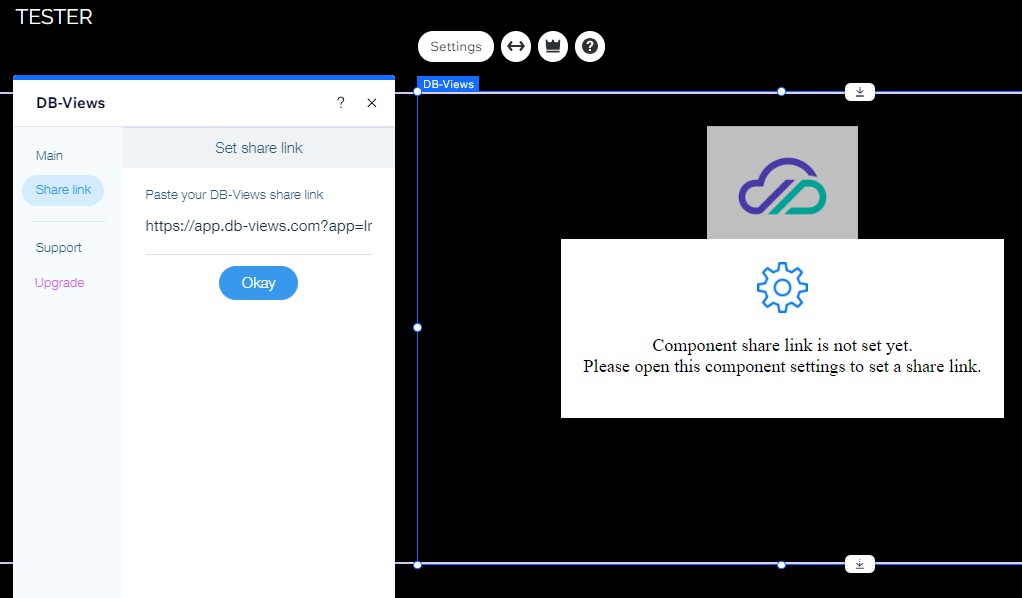
To test-drive this demo on your Wix site:
- Click Add Elements
in the Wix Editor.
- Click Embed Code.
- Click Popular Embeds.
- Choose Embed a site
- Enter Website address:
https://app.deby.ai?app=lndz
You may see our Wix demo page here .
To create your own views and apps:
- Create a share link.
- Copy the share link to the clipboard.
- In the desired webpage, create a Website element as described above.